Google

The fastest search engine in town! Try it now...

Wednesday, November 5, 2008

>> Facebook helps you connect and share with the people in your life.


Millions of people use Facebook everyday to keep up with friends, upload an unlimited number of photos, share links and videos, and learn more about the people they meet.

Do you know about 'Friendster'? Facebook works as same as friendster, but, it's looks more professional. Some info about facebook...

Information
Founded: February 4, 2004
Website: http://www.facebook.com/
Company Overview: Facebook gives people the power to share and makes the world more open and connected.

Sign Up Now! It's free and anyone can join...

Just fill in:
1. You Name
2. You active e-mail address including your mail provider such as xxxx@yahoo.com
3. Create your password
4. Select your sex
5. Give your birthday

*Why do I need to provide my birthday? - Facebook requires all users to provide their real date of birth as both a safety precaution and as a means of preserving the integrity of the site. You will be able to hide this information from your profile if you wish.

Last but not list, by clicking Sign Up, you are indicating that you have read and agree to the Terms of Use and Privacy Policy.

Monday, October 20, 2008

>> MAS Air Tickets from RM54


All tax included. No hidden charges. Unbelievable? See it yourself!
Advertisement in 'Berita Harian' 20 October 2008 (page 8 & 9)...
http://www.malaysiaairlines.com

Wednesday, October 15, 2008

>> Danger of using short key (Ctrl+C) to Copy and Paste your data

Most people use the short key to copy and paste the information or value in order to fill out the application or purchase form. We know that Ctrl+C and Ctrl+V used to copy and paste the data are easier to do but this convenience can cause danger to your secret data such as your credit card ID and login password. The use of Ctrl+C key always stores your data in Windows Clipboard so these copied data can be read and get from websites by Javascript and ASP programming. I let you copy some text by the short key, Ctrl+C, and open the URL as the following,

http://www.friendlycanadian.com/applications/clipboard.htm

If this web page shows the text that you have just copied. It means that your computer does not prevent your copied information in Clipboard from other websites. I suggest that you should do these steps to protect your important data.


How to protect your data in Windows Clipboard ?

  • Open Internet Explorer.
  • Go to the menu, Tools > Internet Options > Security.
  • Under the Security tab, click the Custom Level button.
  • In the Security Settings window, find the message that is “Allow Paste Operations via Script“. Under this message, select Disable and then click OK.
  • Now you do not have to worry when you use Copy+Paste key anymore.
  • For FireFox browser, It does not have this problem (so.. better use firefos rather than internet explorer browser... )

Friday, September 26, 2008

>> How to captured everything shown on your display (monitor) and save it as an image file

What is Print Screen? (from Wikipedia, the free encyclopedia)
Print screen (often abbreviated Prt Scr, Print Scrn, Prt Scn, Prt Sc or Prnt Scrn) is a key present on most keyboards, typically situated in the same section as the break key and scroll lock key (see pix below). Print screen is shared with system request. Under earlier command-line based operating systems, this caused the contents of the current screen memory buffer to be copied to the standard printer port, usually LPT1. In essence, whatever was currently on the screen when the key was pressed was printed.
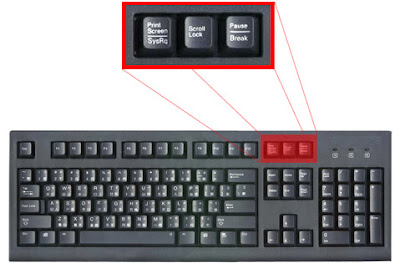

How do it works?
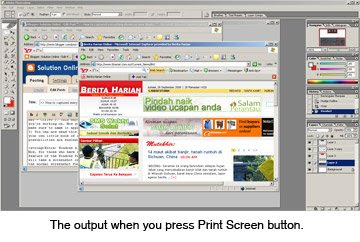
Easy, you just tap the Print Screen (often abbreviated Prt Scr, Print Scrn, Prt Scn, Prt Sc or Prnt Scrn) button. The real function of this key is to make a "snapshot" of your screen. Meanings, it will captured everything shown on your display (monitor) and convert it as an image file. If you have some imaging software such as Paint or Photoshop (or a good word processor), you can then paste it into there and crop, etc.

Tutorial:
1) To capture the whole screen, just hit the Print Screen button on your keyboard.
2) Then, open your imaging software (and a blank page, if you need to - it will depend on your software) and select your "Paste" command (or you can use chortcut key - Ctrl+V ). This should paste an image of your computer screen into the document you're working on. Now you can Save (Ctrl + S) the document to wherever you wish, make sure to name it appropriately so you can easily find it.
3) You can now send this file to anyone via email, use it in a presentation, create your own little book of screenshots showing how to perform a specific task, etc. The possibilities are endless.

Extra: Windows Alt Prt Scr
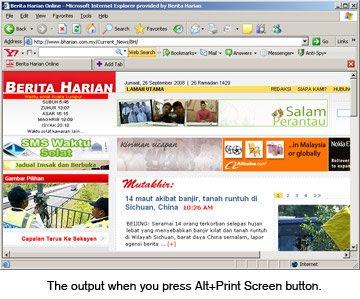
Now, for those who have read this far, we are going to share another neat little feature of the Windows Print Screen Key. Pressing these keys (Alt + Print Screen) will take a screenshot of the currently selected window, not the entire screen like the normal screenshot function. This allows you to target that specific window that you have open and nothing else. No more cropping those screenshots to grab the content you were after!

Example: The output


Ok folks, soon you'll be a screenshot master!

Wednesday, September 17, 2008

>> Listen to the Quran Recitation and Translation online in Arabic, English, and Urdu.


Ramadan has a special relationship with the Qur'an, of course: "The month of Ramadan is the one in which the Qur'ân was sent down, a guidance for mankind, clear proofs for the guidance, the Criterion; so whoever amongst you witnesses this month, let him fast it." (Soorah al-Baqarah 2:185)

Therefore, i want to share a good site where you can LISTEN to the Quran Recitation and Translation online in Arabic, English, and Urdu. It's called Quran explorer.com!


What inside Quran explorer.com?

  • Arabic audio recitation from 6 famous Qaris
  • Arabic text with translations in 7 languages
  • Audio Translations in English and Urdu
  • Sura, Verse, Juz, & Qari selection options
  • Easy Navigation and Streaming Audio
  • Easy to read font with adjustable sizes
  • Custom font developed for IndoPak script
  • Automatically Bookmarks your progress
  • Color Coded Tajweed Rules
  • No programs to download


Extra info about Quran Explorer.com

Thursday, September 4, 2008

>> Enjoy with Internet Explorer shortcut keys


Normally a computer user spending his maximum time daily with internet browsing different sites. But if you are familiar with internet explorer shortcuts keys, you can increase your browsing speed and can handle many online browsing restrictions very easily.

Here are some common internet explorer shortcut keys.

  • Press F5 to refreshes the webpage.

  • Press Backspace button back to the previous page.

  • Press Alt+Home button same time to go home page of the website.

  • Press any time Ctrl+N to open the new browser windows.

  • Press F11 key to view any webpage in full-screen view and then again press for normal view.
  • Press Ctrl+P keys to send the print command for current whole page.
  • Press Ctrl+H keys to view your browsing history.
  • Press Ctrl+w keys to close the current browser window.
  • Press Esc button to stop any page browsing.
  • Press Ctrl+Enter Windows will automatically add both "www" and ".com". For example, if we type yahoo in an address bar and then press Ctrl-Enter, Windows will take us to the www.yahoo.com.

Monday, September 1, 2008

>> How to secure/hide folders/files on personal computer?

Today i want to share a very helpful tips on how to hide and secure your personal data from other users, particularly on home computer. Just imagine if multiple users are using the same computer at home or in office environment then there is no any 100% secure method to protect your personal files. You may be used any third party tools to protect your folders but it is not recommended by Microsoft to use such kinds of tools. Using built-in windows (XP, 2003, Vista) Attrib commands option, you can change the attributes of a folder (Read only, Hidden and System attributes) and safe your data.

Follow the given steps to edit the folders attributes to secure your data:

To enable this feature, you will need to be logged into your computer with administrative rights.

Now create a folder that you want to hide on any computer drive. (For example, you have created a folder on D drive with the name Data)

First click on Start button and type CMD in Run box then press Ok button to display the windows command prompt.


Now type the command "attrib +s +h D:\Data" without quotation marks and press Enter button to execute it.


This command will hide your "Data" folder from D drive and now you can verify it.

Any one cannot unhide this folder using windows "Show hidden files and folders" option also.

When you want to unhide this folder, again open command prompt and type the command "attrib -s -h D:\Data" and press Enter button. If you want to hide files then simply move all these files to this "Data" folder.


Walla... interesting isn't it? From now on, your personal data will be much secured..

Reference: http://www.computerfreetips.com
Terkini & Sensasi
Dapatkan berita terkini dan hiburan sensasi di portal khas gabungan akhbar-akhbar online di Malaysia sekarang!
http://malaysianonestopnews.blogspot.com/

Blog archived (by month)

Year(s) Month(s)
2011 Jan - Feb - Mac - Apr - May - Jun - Jul - Aug - Sep - Oct - Nov - Dec
2010 Jan - Feb - Mac - Apr - May - Jun - Jul - Aug - Sep - Oct - Nov - Dec
2009 Jan - Feb - Mac - Apr - May - Jun - Jul - Aug - Sep - Oct - Nov - Dec
2008 Jan - Feb - Mar - Apr - May - Jun - Jul - Aug - Sep - Oct - Nov - Dec
2007 Jan - Feb - Mac - Apr - May - Jun - Jul - Aug - Sep - Oct - Nov - Dec
Related Posts with Thumbnails